
How to Install IPTV on Smart TV (Samsung & LG) in 2026
[rank_math_toc]
Smart TVs have become the centerpiece of modern living rooms. While they come with built-in apps like Netflix and YouTube, many users struggle to add their live TV subscriptions. If you want to Install IPTV on Smart TV 2026, you might find the process slightly different depending on your TV’s operating system.
Whether you own a Samsung (Tizen OS) or an LG (WebOS), this step-by-step guide will walk you through the easiest and fastest methods to get your service running in 4K. If you don’t have a subscription yet, you can explore our IPTV Europe service for instant access to thousands of channels.

Smart TV vs. Amazon Firestick: Which is Better?
Before we dive into the installation, a common question arises: should you use your TV’s built-in smart platform or buy a separate streaming device like a Firestick? According to Wikipedia’s overview of Smart TVs, these devices combine internet capabilities with traditional television. However, their app stores are often restricted.
| Native Smart TV (Samsung/LG) | Amazon Firestick 4K Max |
|---|---|
| No extra device needed; uses TV’s remote. | Requires a separate HDMI stick and power. |
| App store is restricted; sideloading APKs is difficult. | Open ecosystem; easy to sideload any IPTV app (APK). |
| Hardware (RAM/CPU) is often weak, leading to sluggish menus. | Powerful processor ensures smooth EPG navigation and zero lag. |

If your Smart TV is older or very sluggish, we highly recommend using a Firestick instead. You can learn how to set that up in our guide on how to install IPTV on Firestick 2026. However, if you want to use your TV’s native system, read on.
How to Install IPTV on Samsung Smart TV (Tizen OS)
Samsung uses its own operating system called Tizen. You cannot directly install Android APK files on it, so you must use the official Samsung App Store.
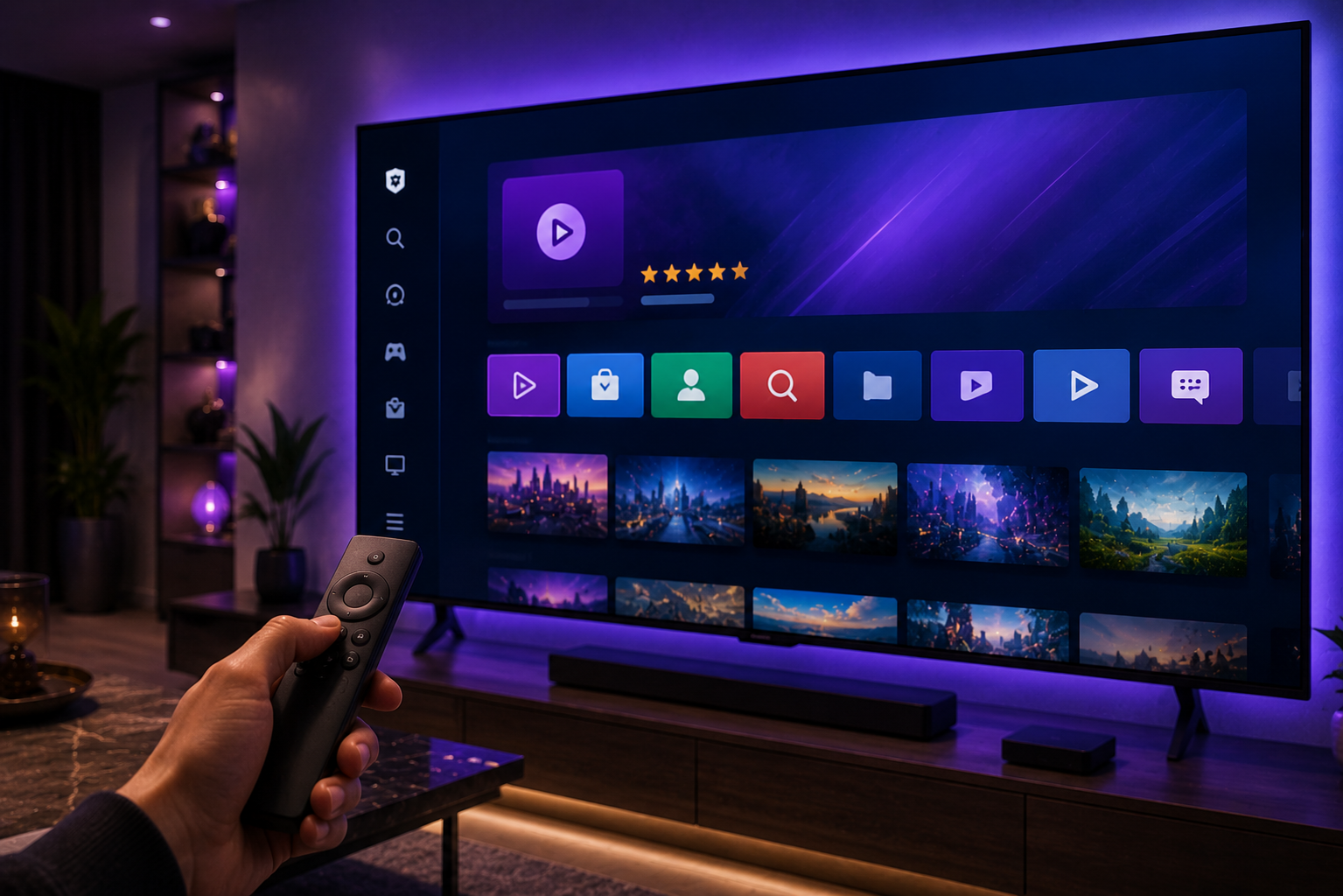
- Open the Smart Hub: Press the ‘Home’ button on your Samsung remote and navigate to the ‘Apps’ section.
- Search for an IPTV App: Use the search icon to look for IPTV Smarters Pro or Set IPTV. (TiviMate is not natively available on Tizen).
- Download and Install: Click ‘Install’ and wait for the app to download to your TV.
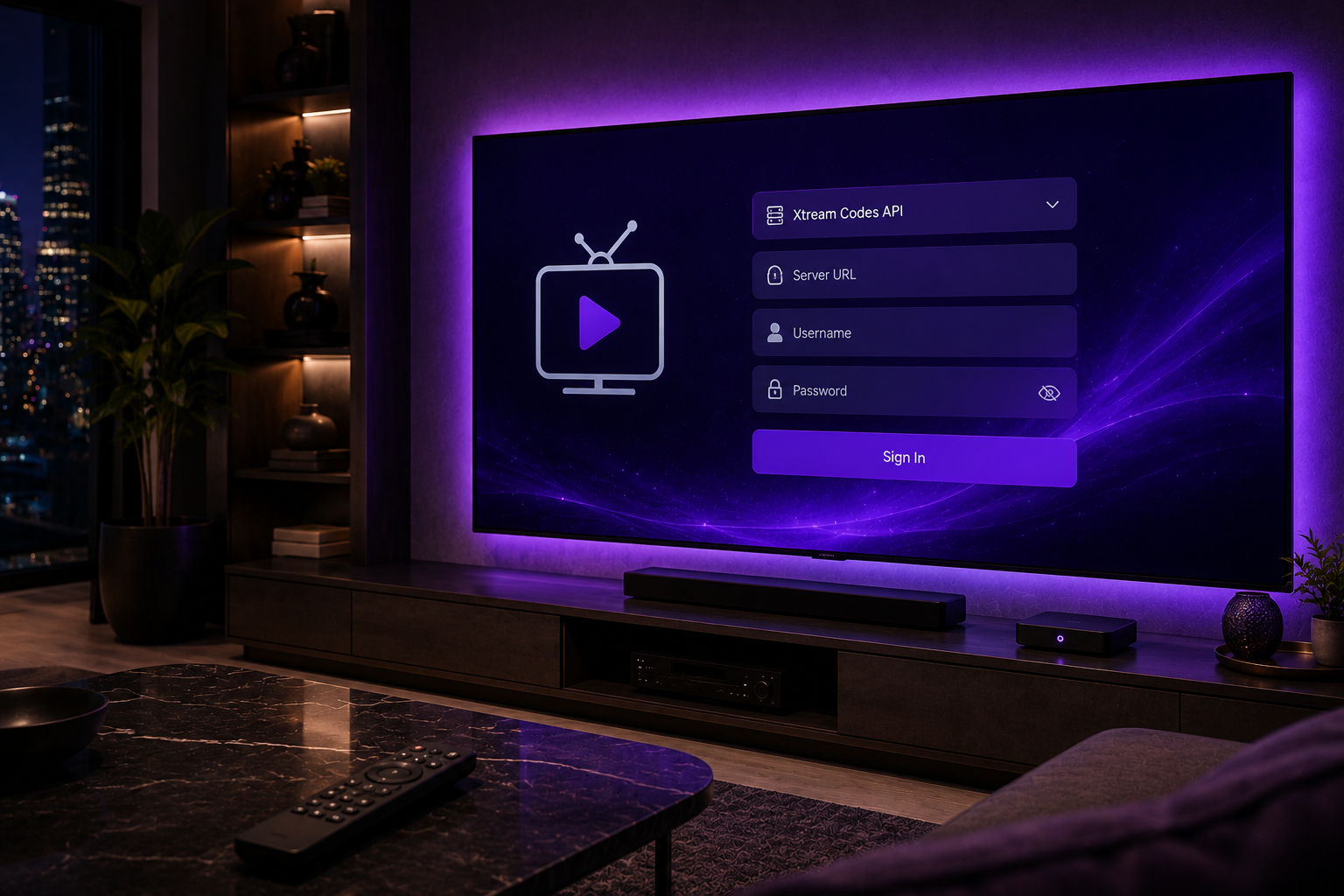
- Enter Your Details: Open the app, select ‘Login with Xtream Codes API’, and enter the Server URL, Username, and Password provided by your IPTV provider.
- Stream: Click ‘Login’ and your live TV channels and VOD library will load instantly in 4K.
How to Install IPTV on LG Smart TV (WebOS)
LG uses WebOS, which is also a closed system. The process is very similar to Samsung’s.
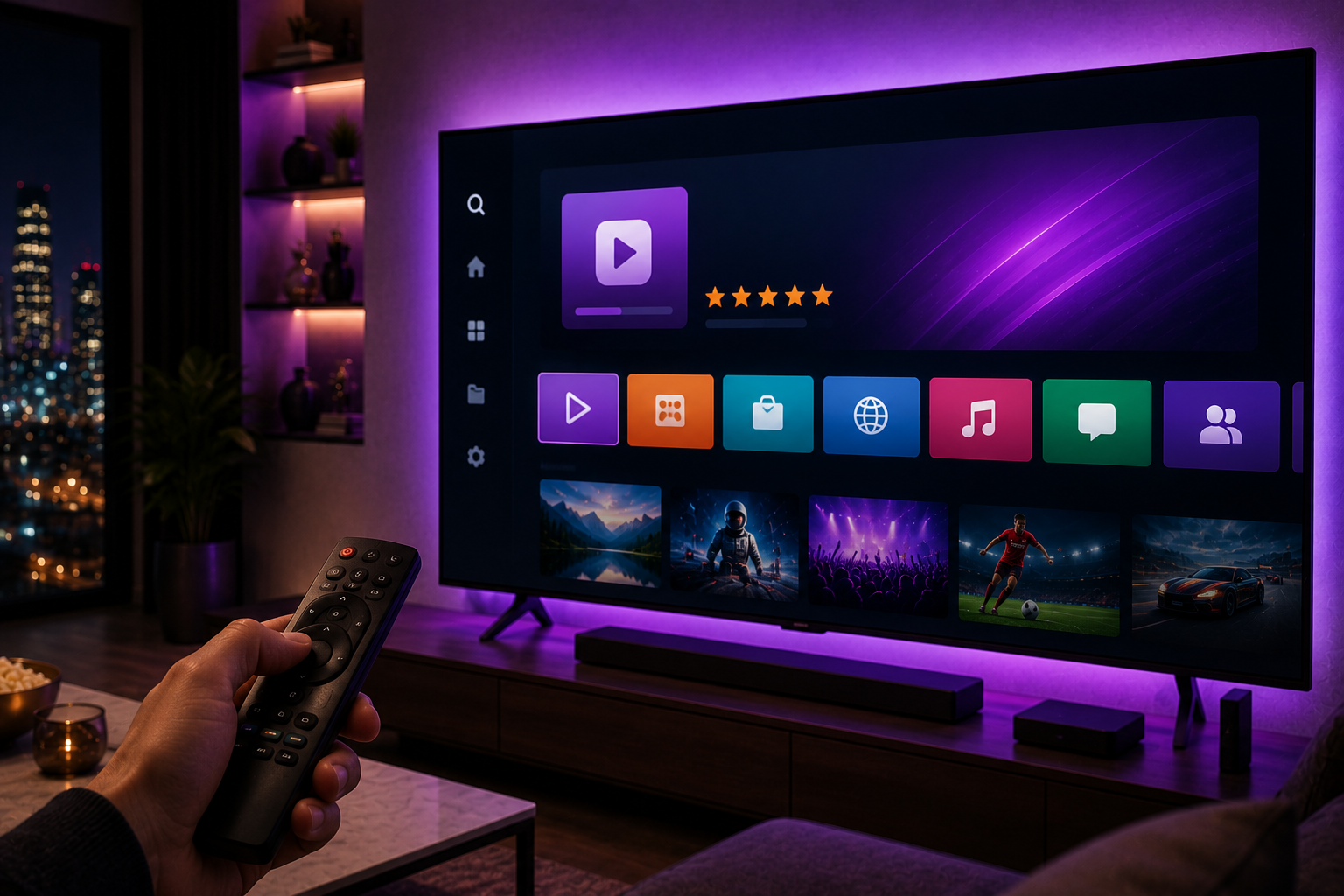
- Access the LG Content Store: Press the ‘Home’ button on your LG Magic Remote and find the ‘LG Content Store’ icon.
- Search for Apps: Go to the ‘Apps’ section and search for IPTV Smarters Pro. (Set IPTV is also a great alternative for LG).
- Install the App: Click ‘Install’ to add it to your home screen.
- Log In: Open the app and input your M3U link or Xtream Codes API credentials.
Troubleshooting Smart TV IPTV Issues
Even after you successfully Install IPTV on Smart TV 2026, you might face occasional performance issues. Smart TVs have limited RAM compared to Android boxes, which can cause freezing.

- Clear App Cache: If the app is slow, go to your TV’s Settings > Device Preferences > Apps > IPTV App > Clear Cache.
- Use a Wired Connection: Smart TVs often have weak Wi-Fi antennas. Plugging an Ethernet cable directly into your TV can solve 90% of streaming issues.
- Server Overload: If only live sports are freezing, your provider’s server might be overloaded. Learn how to fix IPTV buffering 2026 to optimize your setup.
Frequently Asked Questions (FAQ)
Can I install TiviMate on my Samsung or LG Smart TV?
No. TiviMate is an Android-based application and is not available on the Samsung Tizen Store or the LG Content Store. To use TiviMate, you must connect an Android box or an Amazon Firestick to your TV.
Why is my IPTV app not in the Samsung App Store?
Sometimes, Samsung removes IPTV apps due to regional policy updates. If you can’t find IPTV Smarters, look for alternative players like ‘Set IPTV’ or ‘IPTV Smart Purple Player’.
Do Smart TVs support 4K IPTV streaming?
Yes. As long as you have a 4K UHD Smart TV and a high-speed internet connection (25 Mbps or higher), the IPTV app will automatically play 4K channels if your provider offers them.
Conclusion: Unlock Your TV’s Potential

Knowing how to Install IPTV on Smart TV 2026 allows you to turn your standard living room screen into a global entertainment hub. Whether you use Tizen or WebOS, the process takes just a few minutes. Remember, the quality of your streaming heavily depends on your provider.
Ready to upgrade your TV experience? Get your instant Anti-Freeze IPTV subscription today!

Pingback: IPTV Free Trial 2026: Get a 24-Hour IPTV Test Instantly
Pingback: Best IPTV Spain 2026: Watch La Liga & Local TV in 4K
Pingback: Best IPTV for UK Sports 2026: Premier League & Sky Sports 4K
Pingback: Best IPTV for Germany 2026: Bundesliga, DAZN & Sky in 4K
Pingback: Best IPTV for Italy 2026: Watch Serie A, DAZN & Sky in 4K
Pingback: Best IPTV for France 2026: Watch Ligue 1, Canal+ & TNT in 4K
Pingback: Best IPTV for Netherlands 2026: Watch Eredivisie & Ziggo in 4K